

Part 43 records, done on the ramp.
The maintenance sister app to Detailer PRO. Record the work, the parts and the ADs, then sign the return to service before the aircraft leaves the hangar.
MENUA maintenance job, start to finish
The recommended order follows the work, from the aircraft as received to the signed entries.
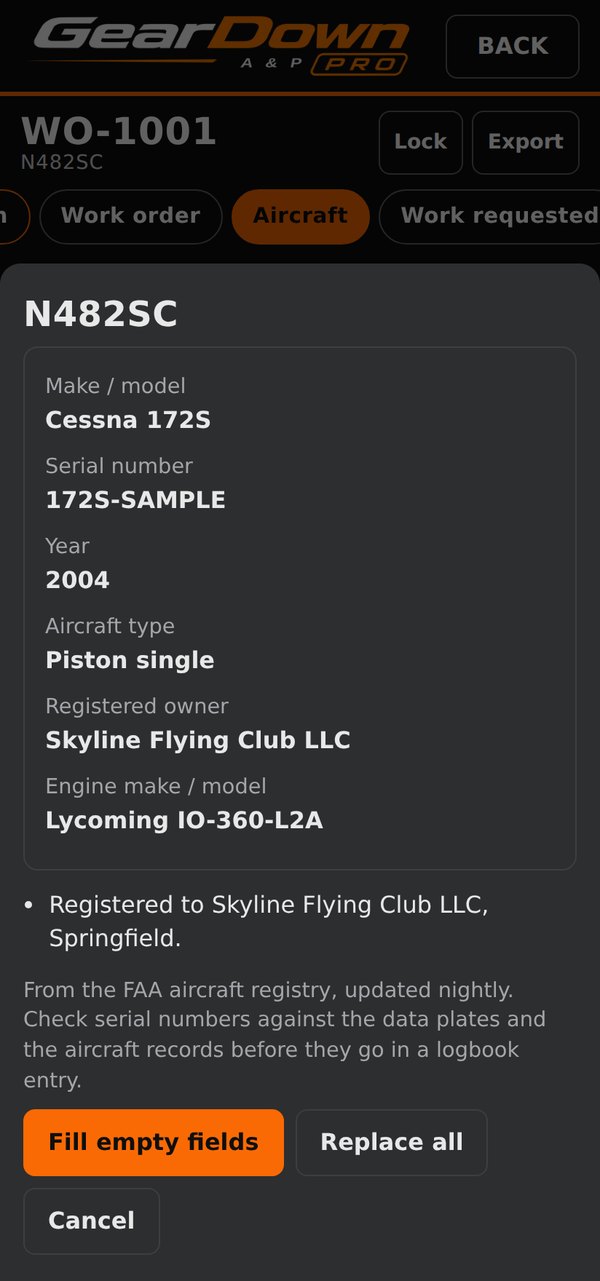
Identify the aircraft
Look up the N-number and fill make and model, serial, year, registered owner and engine from the FAA registry. Check serial numbers against the data plates before they go in a logbook entry.
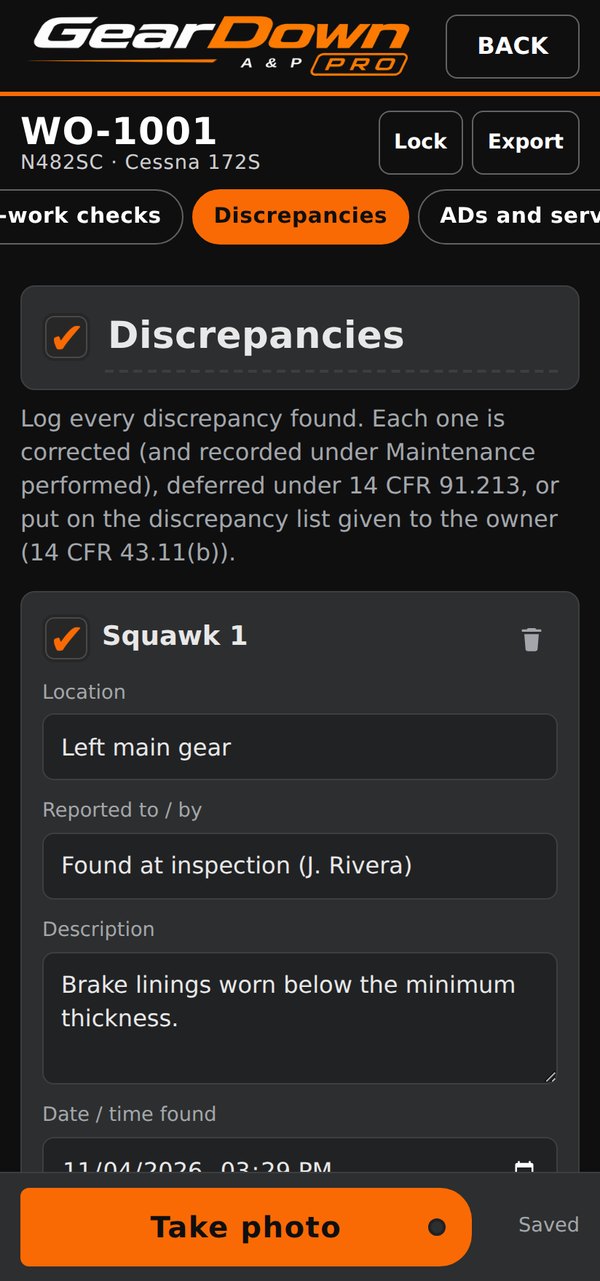
Write up the squawks
Each discrepancy gets a status: corrected, deferred under 14 CFR 91.213(d), on the 43.11(b) discrepancy list given to the owner, or not airworthiness related.
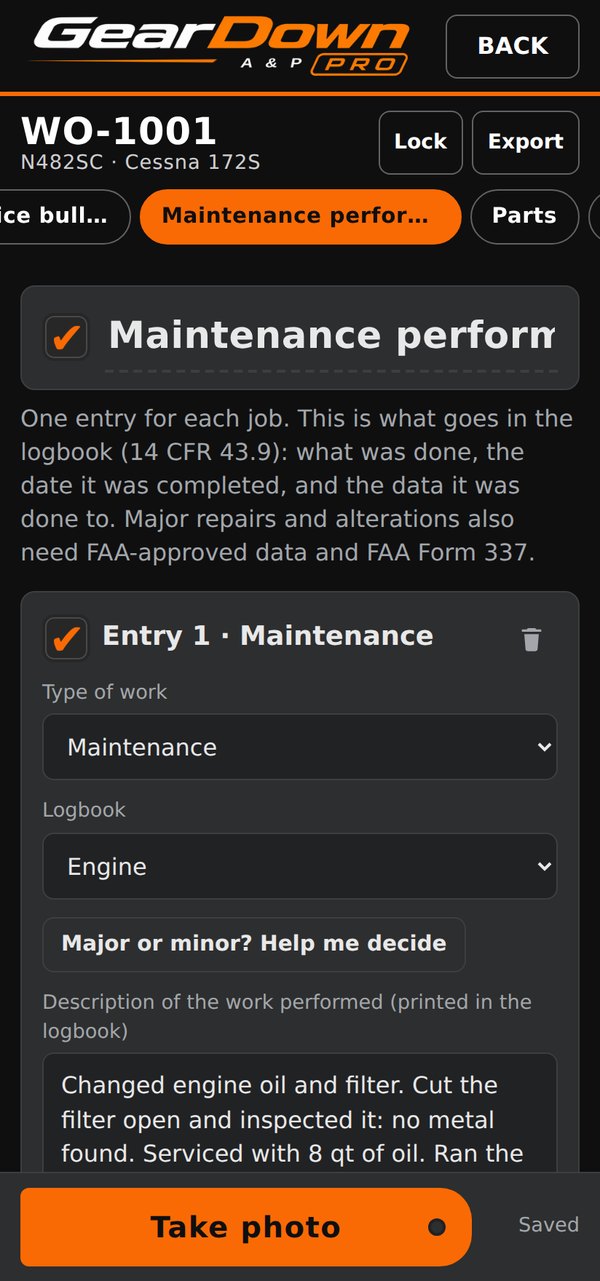
Record the work
One entry per job, as it goes in the logbook: type of work, logbook, description, reference data, date completed and who did it. Major or minor? Help me decide walks through the 14 CFR 1.1 definitions and Part 43 Appendix A.
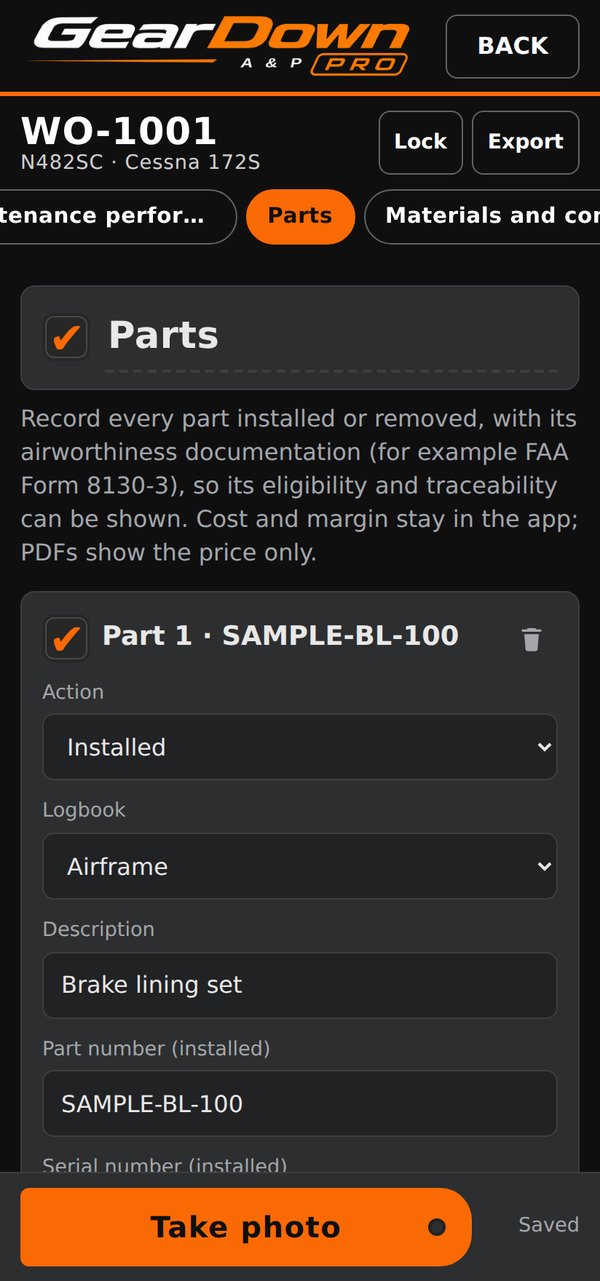
Track the parts
Installed, removed or replaced, with P/N, S/N and airworthiness documentation: 8130-3, EASA Form 1, CoC, PMA, TSO, standard part or owner-produced. Cost and margin never print.
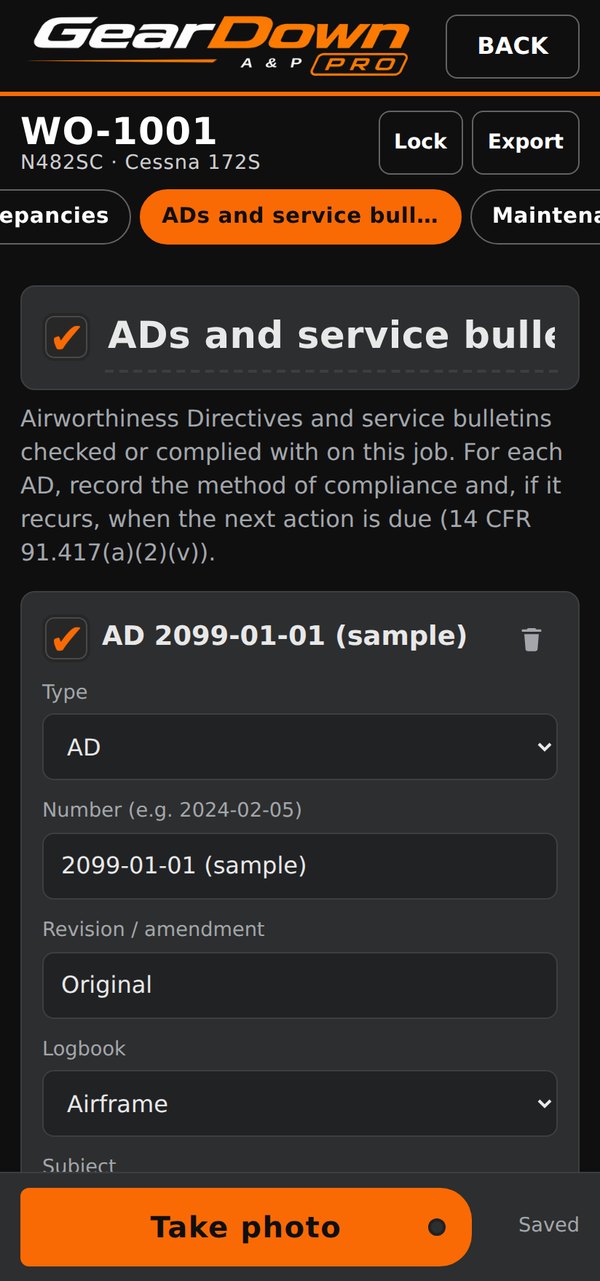
Show AD compliance
AD and service bulletin number, revision, status, method of compliance, and the next due hours or date for recurring ADs.
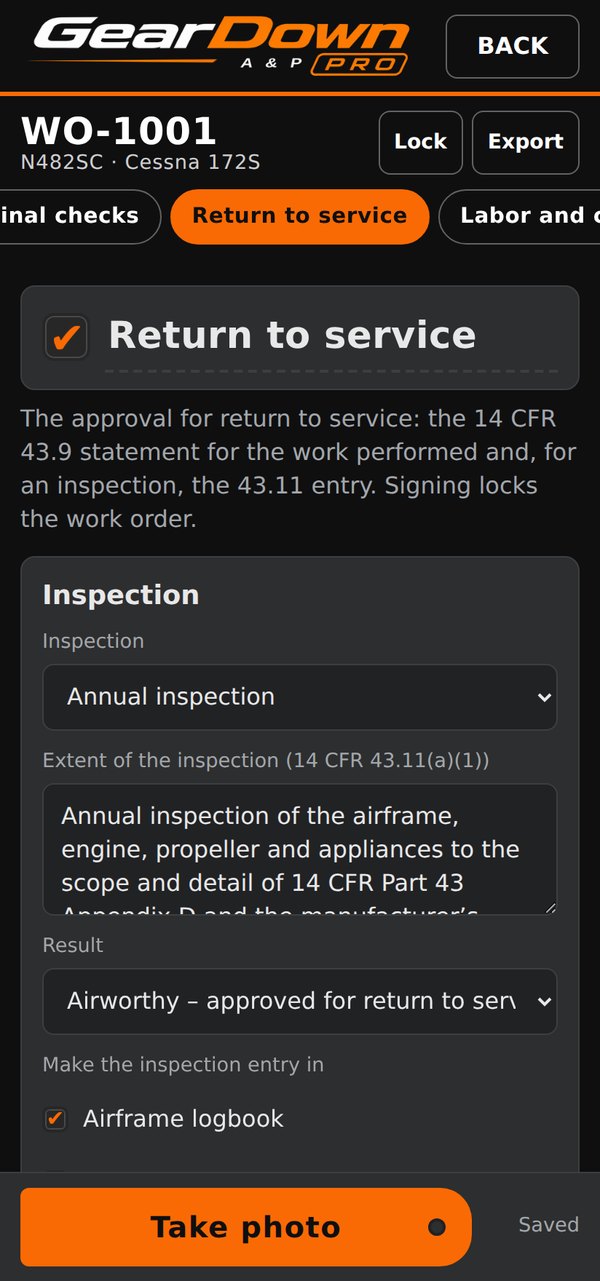
Return to service
The app builds the 43.9 statement and, for an inspection, the 43.11 statement. Before signing it checks the work against the signer’s certificate: annuals and major approvals need an IA or repair station, an airframe-only rating can’t sign engine entries, and an open AD or squawk blocks an airworthy finding.
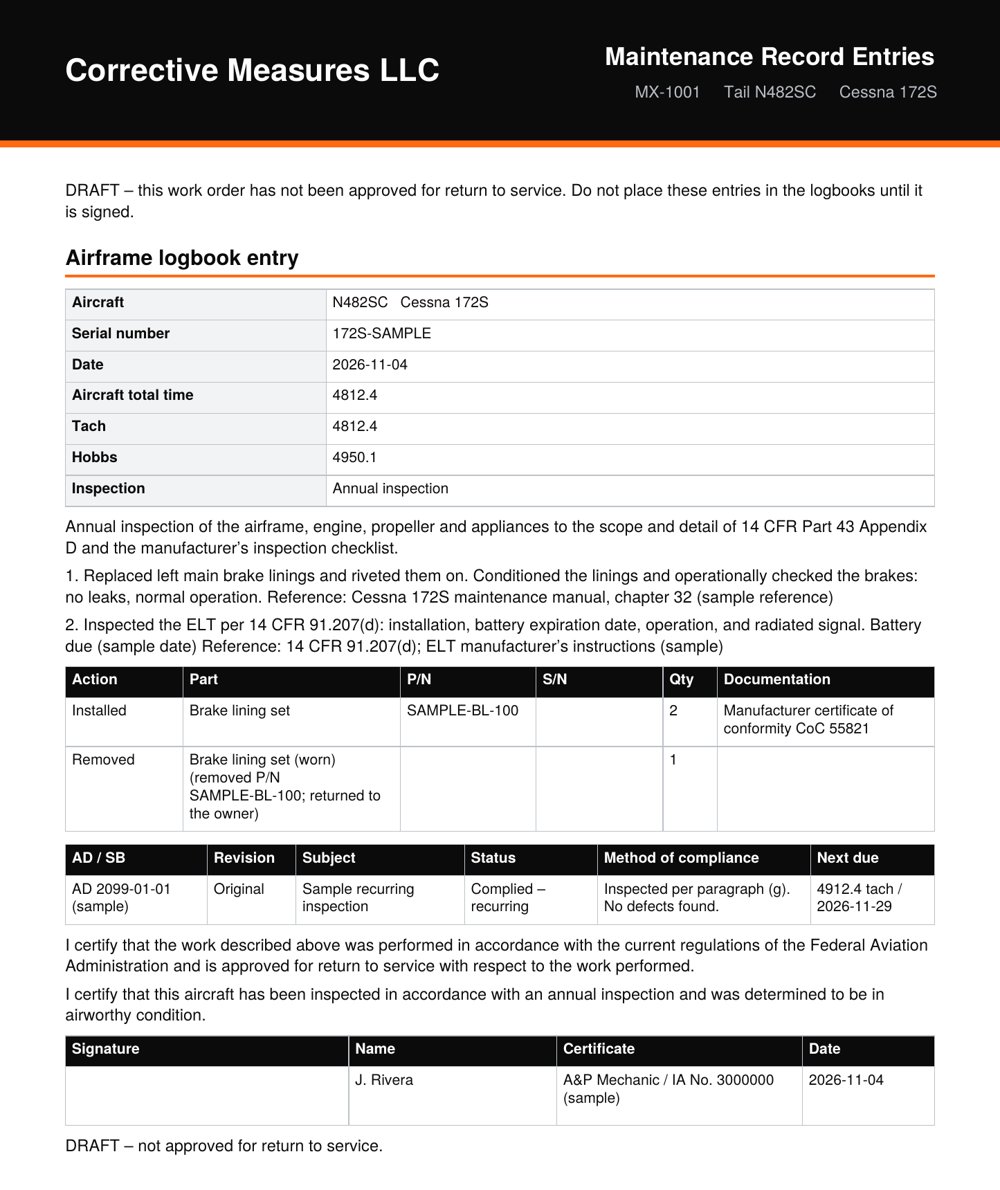
Print the logbook entries
One entry per logbook, with no prices: the aircraft, engine or propeller identity, times, the work, parts and documentation, AD compliance, the statements and the signature with certificate. Unsigned work orders print as a draft.
Generated by the app from its sample job.
Owner approval and payment, online
The owner approves the estimate before you start, signs off the work order when you’re done, and pays from their phone. Their signature is separate from the return to service, which only the mechanic signs.
Estimate approved first
Send the quote as a signing link. The owner reviews the squawks, parts and labor and approves it on their phone before work begins.
Only the owner can approve
Only the person named on the quote or work order can sign it. If a different name signs, the app warns you.
Signed off and paid
The finished work order goes back for the owner’s signature, and they can pay right away by card or bank transfer through your own Stripe account.
Every job’s stage at a glance
Quotes sort into Sent, Approved and Rolled to work order; work orders into Active, Awaiting payment and Complete, each with its own timeline.
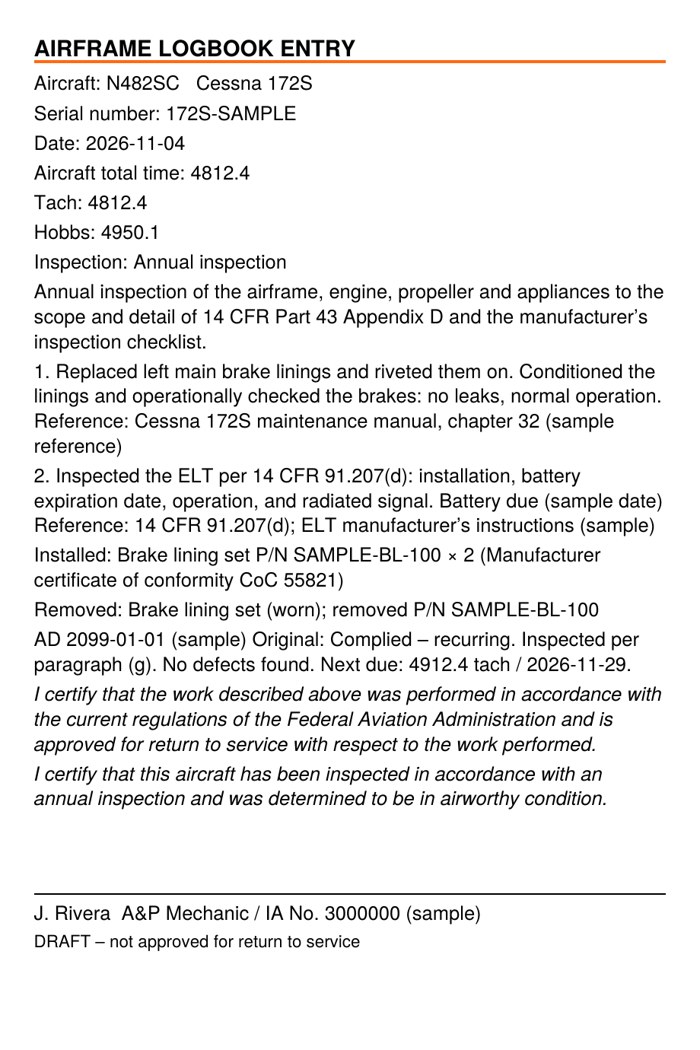
Entries that stick in the logbook
Print logbook entries on the thermal label printer you already own, then stick them straight into the paper logbooks.
- Label sizes for Zebra, Rollo, DYMO and Brother printers: 4 × 6 in, 4 × 3 in, DYMO 2-5/16 × 4 in, Brother 62 mm and 102 mm rolls, or any custom size
- Print through Android’s print screen, open the PDF in your printer maker’s app, or send ZPL straight to a Zebra on your Wi-Fi
- A Form 337 worksheet laid out by the form’s block numbers when a major repair or alteration is recorded
- Aircraft records per tail number: annual due date, last 100-hour, recurring ADs coming due, open or deferred items
- Recurring ADs and annuals due within 30 days show under Needs attention
Signed, sealed and checkable
Signing the return to service takes a drawn signature, a tick-box attestation, and the phone’s fingerprint, face or screen lock. The work order is then locked, and opening it later shows whether the record is unchanged since signing. Unlocking it voids the signature, which is kept in a voided list, and the mechanic signs again.
GearDown A&P PRO helps prepare Part 43 entries. The certificated person remains responsible for the work and the record. If you want electronic records accepted as the aircraft’s maintenance records, review AC 120-78B with your FSDO.
Manual and FAQ, built into the app
Step-by-step instructions and a searchable FAQ for every part of GearDown A&P PRO, under MENU, Help and support. They work without a signal.